

Get started
Getting started
Install Assay, read the Setup screen, and know what the app has already done for you.
Assay puts the EU legal guarantee notice on your Shopify product pages. Setup takes about five minutes, and most of it happens on its own.
1. Install Assay
Install Assay from the Shopify App Store. On the permissions screen you will see that Assay asks for your products only: it reads them, and it saves the GARAN fields on them. It never asks for your customers or orders, and it never edits your theme’s files.
Shopify then opens the app inside your admin. The first time, loading can take a few seconds while Assay finishes connecting to your store.
2. Read the Setup screen
Assay opens on Setup, a checklist titled Get compliant. Two of the steps are already done:
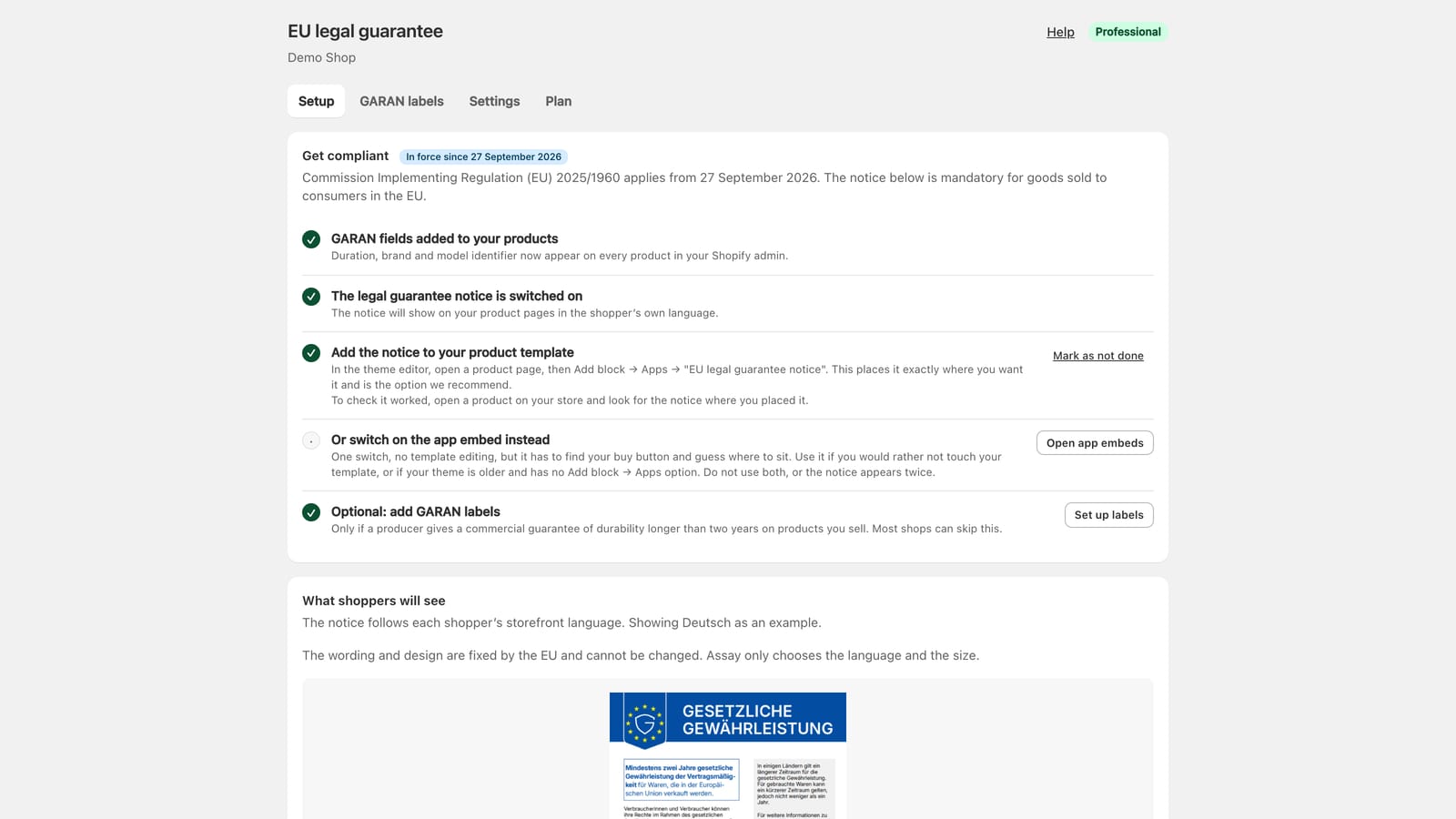
- GARAN fields added to your products. Assay created three fields on every product: duration, brand and model identifier. You will find them at the bottom of any product in Shopify’s Products page.
- The legal guarantee notice is switched on. It is on from the start, because it is mandatory for goods sold to consumers in the EU from 27 September 2026.
The steps that are left are yours:
- Add the notice to your product template. Assay cannot see or edit your theme, so you place the notice once in the theme editor. Add the notice to your product pages walks you through it.
- Or switch on the app embed instead. The one-switch alternative, for older themes. Use one or the other, not both.
- Optional: add GARAN labels. Only if a producer gives a commercial guarantee of durability longer than two years on products you sell. Most shops can skip this. See GARAN labels.
3. See what shoppers will see
Scroll down to What shoppers will see. It shows the notice exactly as your storefront will, in one of the languages your shoppers may see. The wording and design are fixed by the EU and cannot be changed; Assay only chooses the language and the size.
4. Confirm it on your store
Once the notice is on your product pages, open a product on your store and look for it under the buy buttons. Then come back to Setup and click I’ve checked it’s on my store. Assay remembers your answer, and Mark as not done undoes it.
The four tabs
| Tab | What it is for |
|---|---|
| Setup | The compliance checklist and the notice preview |
| GARAN labels | Durability labels, one product at a time or in bulk |
| Settings | Language, size, products to leave out, the label style |
| Plan | Free, Starter and Professional |
Help at the top right of the app brings you to this help centre.
Not answered here? Email [email protected] with your shop's myshopify.com address. We usually reply within one business day.