

Everyday use
GARAN labels
When the GARAN durability label applies, how to set it on a product, and how to show it on your storefront.
GARAN is the EU’s label for a producer’s commercial guarantee of durability. It is optional. Most shops never need it, and showing it without a real guarantee behind it is a misleading claim.
When a product qualifies
All of these must be true:
- The producer (the manufacturer) gives the guarantee. Your own shop warranty, an extended warranty you sell, and the two-year legal guarantee do not count.
- It is free of charge.
- It covers the whole good, not just a component.
- It lasts longer than two years.
If you are not sure the producer offers one, leave the fields blank.
The three fields
Each product has three GARAN fields, created when you installed Assay:
| Field | What goes in it |
|---|---|
| Years | How long the producer guarantees the product will last, and more than two. Not the two-year legal guarantee. |
| Brand | The producer’s brand or trademark, as it appears on the product. Up to 30 characters. |
| Model identifier | The producer’s model number, so a shopper can match the label to the product. Up to 30 characters. |
A label shows only when all three are set and the years are 3 or more.
Set a label on one product
- In Assay, open GARAN labels and scroll to Products.
- Find the product. Use Search products, or the Missing a label filter.
- Fill in Years, Brand and Model identifier. Use product details copies the vendor into Brand and the SKU into Model; check the SKU is the producer’s model number and not your own stock code.
- Click Save in Shopify’s save bar at the top of the admin.
The row turns Complete, and the count at the top of the list goes up. Undo on the confirmation brings back the previous values for a few seconds after saving.
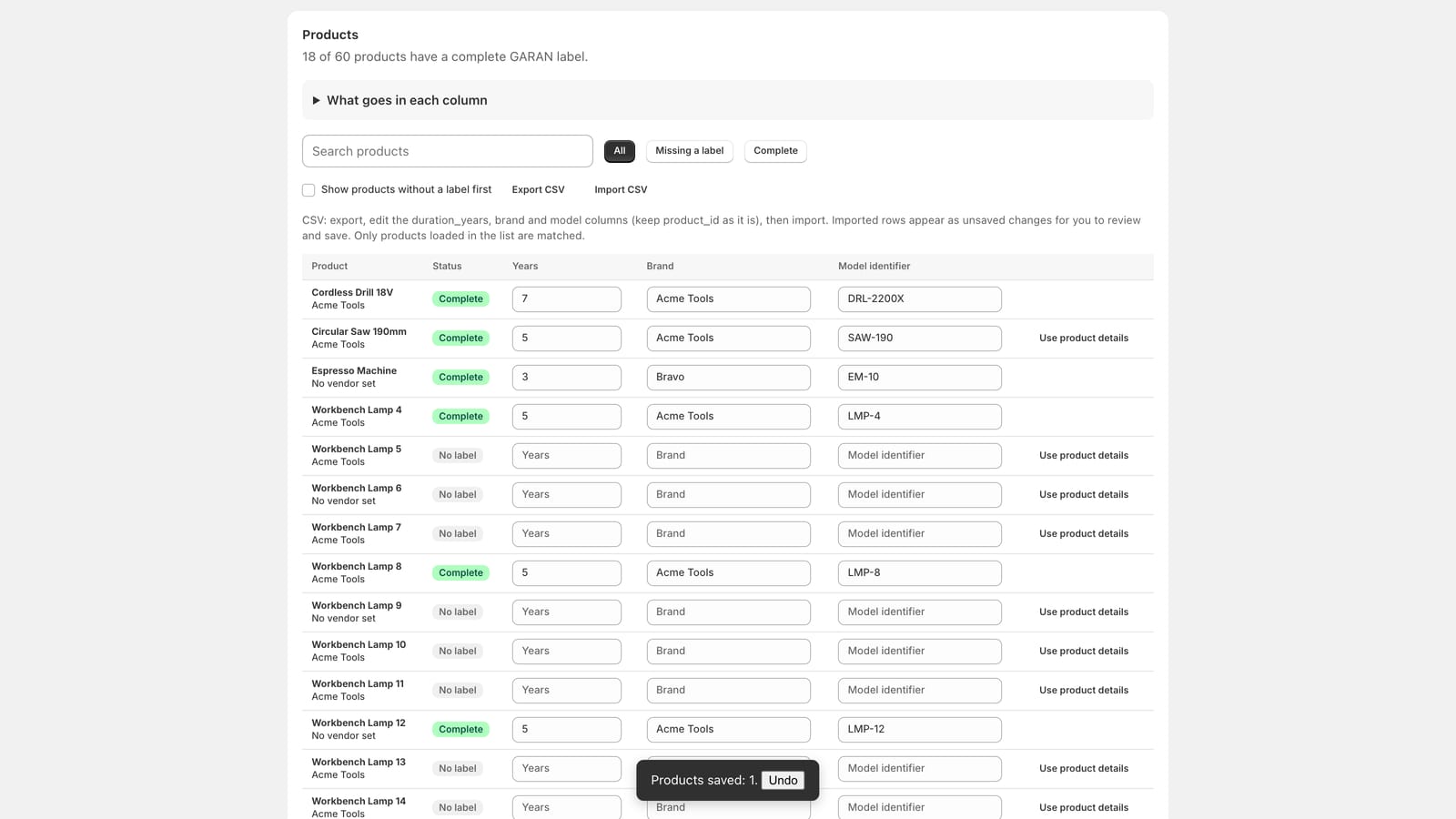
You can edit many rows before saving; they all save together. Leaving the tab with unsaved edits asks first.
What the statuses mean
| Status | Meaning |
|---|---|
| Complete | Shows on the product page. |
| Incomplete | Has one or two fields. Fill in all three, or clear them. |
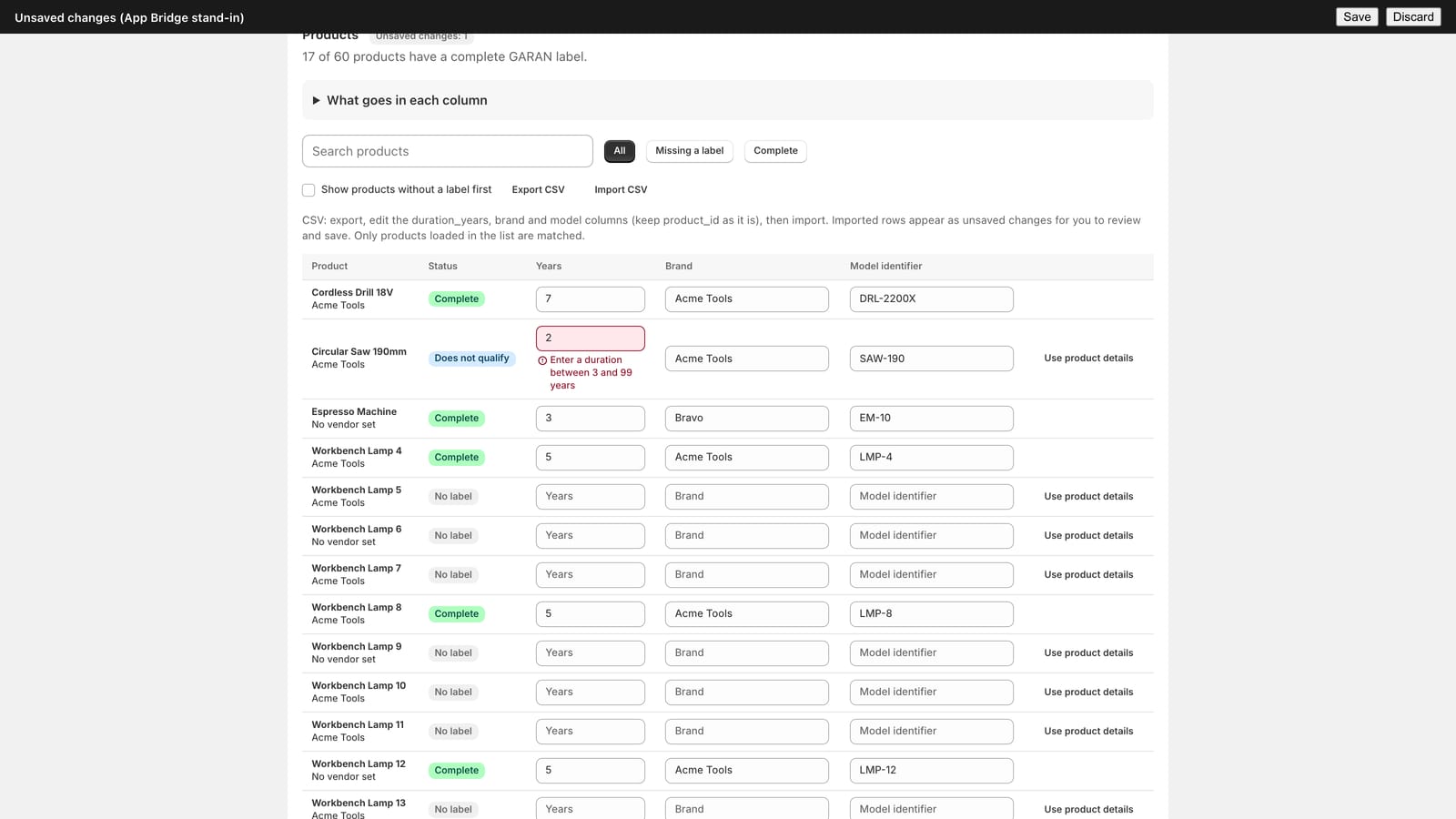
| Does not qualify | Two years or less. The GARAN label is only allowed above two years. |
| No label | Nothing shows, which is right for most products. |
Rules are checked as you type, the same rules Assay applies when saving, so a problem shows at the field before you save.
Show the label on your storefront
Setting the fields is half of it; the label also needs a place on the page. Either:
- add the GARAN durability label block to your product template (theme editor → Add block → Apps), next to the notice; or
- with the app embed, turn on Also show the GARAN label.
See Add the notice to your product pages.
The label is the EU’s artwork with your three values set into it. On Assay Starter and above you can use the compact (nested) display, one line tall, which opens the full label on click or hover, as the regulation allows online.
Many products at once
- CSV. Export CSV downloads the loaded rows. Edit the duration_years, brand and model columns, keep product_id as it is, and Import CSV. Imported rows appear as unsaved changes for you to review and save. Only products loaded in the list are matched, so click Load more first if you need more rows.
- Bulk apply. On Assay Professional, set years and brand across a whole collection or tag. See Bulk apply.
Where the labels are stored
On each product in Shopify. You will also see the three fields at the bottom of the product’s page in your Shopify admin, and can edit them there. Assay’s list does not show archived, draft or gift card products, or products you have left out in Settings.
Not answered here? Email [email protected] with your shop's myshopify.com address. We usually reply within one business day.