

Get started
Add the notice to your product pages
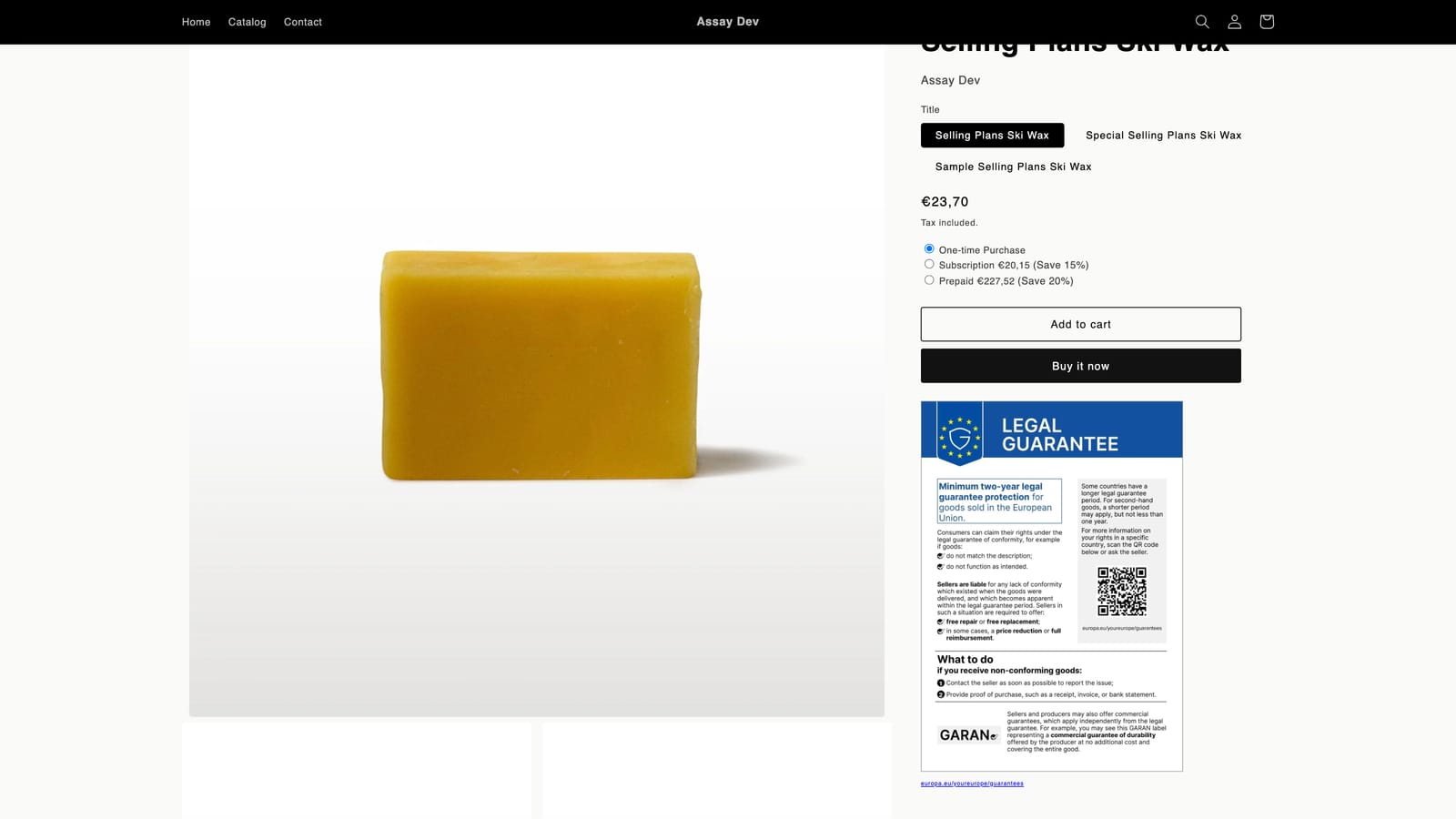
Place the notice exactly where you want it with the app block, or switch on the app embed instead.
Assay switches the notice on for you, but it cannot place it: it has no access to your theme, by design. You place it once, in one of two ways.
| App block (recommended) | App embed | |
|---|---|---|
| How | Add a block to your product template | Turn on one switch |
| Placement | Exactly where you put it | After your buy button, found automatically |
| Works with | Themes with Add block → Apps (all Online Store 2.0 themes) | Any theme |
| Layout shift | None | None on most pages |
Use one or the other, not both, or the notice can appear twice.
The app block
- In Assay, open Setup and click Open theme editor. Shopify’s theme editor opens on a product page. (Or go to Online Store → Themes → Customize and pick a product page from the page menu at the top.)
- In the sidebar, find the section that holds your product information. In most themes it is called Product information.
- Click Add block, open the Apps tab, and choose EU legal guarantee notice.
- Drag the block to sit just below the Buy buttons.
- Click Save.
The notice appears in the editor preview straight away. It shows on every product that uses this template, in each shopper’s language.
Block settings
Select the block in the sidebar to see its settings.
- Size: Use the Assay app setting, Small (360px), Medium (480px), Large (640px) or Custom width. Small is as small as the notice goes: below that its body text drops under 8px and stops being readable.
- Alignment: Left, Centre or Right.
- Space above and below.
Size, alignment and spacing are part of Assay Starter. On the Free plan the block uses the width set in Assay’s Settings.
Several product templates
If your theme has more than one product template (for example a separate one for a collection), add the block to each template your EU products use.
The app embed
Use the embed if your theme is older and has no Add block → Apps option, or if you would rather not touch your template.
- In Assay, open Setup and click Open app embeds. (Or in the theme editor, click the App embeds icon in the left bar.)
- Turn on Assay EU legal guarantee.
- Click Save.
The embed finds your buy button and places the notice after it. Its settings:
- Place after (CSS selectors): where to put the notice, tried in order. Leave it as it is unless the notice lands somewhere odd; then see Troubleshooting.
- Also show the GARAN label: on products where you have set the GARAN fields.
- Show on every page, not just product pages: off by default. The notice is pre-contractual information, and product pages are where a shopper needs it.
Showing GARAN labels
Labels need a block of their own. Add GARAN durability label from Add block → Apps next to the notice, or, with the app embed, turn on Also show the GARAN label. A label shows only on products with all three GARAN fields set. See GARAN labels.
Check it worked
Open a product on your store, not only in the editor. If the store is password protected, enter the storefront password first. You should see the notice where you placed it. Then, in Assay’s Setup, click I’ve checked it’s on my store.
Make sure you are editing your live theme. A notice added to an unpublished theme will not show on your store until you publish that theme.
Not answered here? Email [email protected] with your shop's myshopify.com address. We usually reply within one business day.